Progressive Rollout Strategies with Karmada
This section demonstrates three progressive rollout strategies across multiple Kubernetes
clusters using only Karmada's built-in PropagationPolicy and OverridePolicy — no
additional controllers required:
- Side-by-Side Testing (Canary) — deploy a new version alongside the stable one in a single cluster, validate it, then promote progressively across the region.
- In-place Updates (Rolling Upgrade) — patch the base Deployment cluster
by cluster via an
OverridePolicy, using native Kubernetes rolling update semantics. - Percentage-based Shifting (Wave Rollout) — shift traffic progressively between two Deployments by balancing replica counts, achieving percentage-based traffic migration without ingress weight annotations.
Objectives
- Understand how Karmada's
PropagationPolicyandOverridePolicycan implement progressive rollout patterns without additional controllers - Deploy and validate a canary version in a single cluster before committing to a full region rollout
- Perform controlled in-place rolling upgrades cluster by cluster
- Orchestrate a percentage-based wave rollout using two Deployments in tandem
Prerequisites
Karmada has been installed
Run the commands:
git clone https://github.com/karmada-io/karmada
cd karmada
hack/local-up-karmada.sh
export KUBECONFIG=~/.kube/karmada.config
Note:
hack/local-up-karmada.shcreates a Karmada control plane and three member clusters (member1,member2,member3). All commands in this guide target the Karmada API — no direct interaction with member clusters is required.
Website repository cloned
The YAML manifests and scripts used in this tutorial are stored in the website repository.
Clone it and change into the resources directory — all kubectl apply -f commands and
script invocations in this tutorial use paths relative to this directory:
git clone https://github.com/karmada-io/website
cd website/docs/resources/tutorials/rollout/progressive
Required tools
kubectlgitpython3
How version changes are simulated
Real-world rollouts change the container image. This guide simulates version changes by
updating a ROLLOUT_LABEL environment variable in the Deployment spec. The demo application
returns this value from its /info endpoint, so version transitions are immediately visible
in traffic without requiring image rebuilds or registry access.
The promotion step deliberately uses plaintextOverrider rather than imageOverrider.
While imageOverrider is purpose-built for image tag updates, plaintextOverrider can
patch any field in the manifest—environment variables, configuration values, replica counts,
feature flags—making it the more general primitive. Using it here demonstrates a pattern
that applies beyond image promotion.
The Karmada mechanics—PropagationPolicy, OverridePolicy, rolling update behaviour,
zero-churn finalization—are identical to what you would use with real image tags.
Setup
The following setup steps are shared across all three strategies. Run them once before starting any strategy.
Step 1: Install ingress-nginx
ingress-nginx is used solely as a traffic entry point for each member cluster. It allows
this tutorial to send HTTP requests to each cluster independently via port-forwarding and
observe how traffic is distributed between stable and canary pods in real time.
Install ingress-nginx across all three member clusters using Karmada propagation. Three manifests are applied:
ingress-nginx-deploy.yaml— the ingress-nginx controller workloadingress-nginx-propagation.yaml— aPropagationPolicyfor namespace-scoped resources (ServiceAccount, RBAC, ConfigMap, Deployment, Service, Jobs)ingress-nginx-cluster-propagation.yaml— aClusterPropagationPolicyfor cluster-scoped resources (ClusterRole, ClusterRoleBinding, IngressClass). A separateClusterPropagationPolicyis required because cluster-scoped resources are not namespaced and cannot be selected by a namespacedPropagationPolicy.
kubectl apply -f base/ingress-nginx-deploy.yaml
kubectl apply -f base/ingress-nginx-propagation.yaml
kubectl apply -f base/ingress-nginx-cluster-propagation.yaml
Verify that ingress-nginx has been fully propagated to all member clusters:
kubectl get -n ingress-nginx resourcebindings.work.karmada.io
Expected output:
NAME                                         SCHEDULED   FULLYAPPLIED   AGE
ingress-nginx-admission-patch-job            True        True           90s
ingress-nginx-admission-role                 True        True           90s
ingress-nginx-admission-rolebinding          True        True           90s
ingress-nginx-admission-serviceaccount       True        True           90s
ingress-nginx-controller-admission-service   True        True           90s
ingress-nginx-controller-configmap           True        True           90s
ingress-nginx-controller-deployment          True        True           90s
ingress-nginx-controller-service             True        True           90s
ingress-nginx-role                           True        True           90s
ingress-nginx-rolebinding                    True        True           90s
ingress-nginx-serviceaccount                 True        True           90s
Note: The ingress-nginx installation also registers a
ValidatingWebhookConfigurationnamedingress-nginx-admissionon the Karmada API server. This webhook is intended for member clusters only — its service endpoint does not exist on the Karmada control plane. Leaving it in place will causecontext deadline exceedederrors when applying anyIngressresource to the Karmada API. Delete it before proceeding:kubectl delete validatingwebhookconfiguration ingress-nginx-admission
Step 2: Deploy the application
Deploy http-probe-app at version v1 to all three clusters.
http-probe-app.yaml
apiVersion: apps/v1
kind: Deployment
metadata:
  name: http-probe-app
  labels:
    app: http-probe-app
spec:
  replicas: 6
  selector:
    matchLabels:
      app: http-probe-app
  template:
    metadata:
      labels:
        app: http-probe-app
    spec:
      containers:
        - name: http-probe-app
          image: ghcr.io/cmontemuino/http-probe-test-app:v0.5.0
          ports:
            - containerPort: 8080
          env:
            - name: ROLLOUT_LABEL
              value: v1
          resources:
            requests:
              cpu: 25m
              memory: 64Mi
            limits:
              cpu: 25m
              memory: 64Mi
          readinessProbe:
            httpGet:
              path: /readyz
              port: 8080
            initialDelaySeconds: 3
            periodSeconds: 5
  strategy:
    type: RollingUpdate
    rollingUpdate:
      maxUnavailable: 0
      maxSurge: 1
---
apiVersion: v1
kind: Service
metadata:
  name: http-probe-app-service
  labels:
    app: http-probe-app
spec:
  ports:
    - port: 80
      targetPort: 8080
  selector:
    app: http-probe-app
---
apiVersion: networking.k8s.io/v1
kind: Ingress
metadata:
  name: http-probe-app-ingress
  labels:
    app: http-probe-app
  annotations:
    nginx.ingress.kubernetes.io/rewrite-target: /
spec:
  ingressClassName: nginx
  rules:
    - host: http-probe.local
      http:
        paths:
          - path: /
            pathType: Prefix
            backend:
              service:
                name: http-probe-app-service
                port:
                  number: 80
---
apiVersion: policy.karmada.io/v1alpha1
kind: PropagationPolicy
metadata:
  name: http-probe-app-propagation
spec:
  resourceSelectors:
    - apiVersion: apps/v1
      kind: Deployment
      name: http-probe-app
    - apiVersion: v1
      kind: Service
      name: http-probe-app-service
    - apiVersion: networking.k8s.io/v1
      kind: Ingress
      name: http-probe-app-ingress
  placement:
    clusterAffinity:
      clusterNames:
        - member1
        - member2
        - member3
    replicaScheduling:
      replicaSchedulingType: Divided
The PropagationPolicy uses replicaSchedulingType: Divided — the 6 replicas are split
evenly across the three member clusters (2 per cluster, 6 pods total).
The Ingress rule uses host: http-probe.local as a virtual hostname. You do not need to
add this hostname to /etc/hosts — it is passed explicitly as an HTTP Host header in
every curl command in this tutorial (e.g. -H "Host: http-probe.local"), which is
sufficient for ingress-nginx to route the request to the correct backend.
kubectl apply -f base/http-probe-app.yaml
Verify propagation from the Karmada control plane:
kubectl get resourcebinding http-probe-app-deployment -o jsonpath=\
'{range .status.aggregatedStatus[*]}{.clusterName}: {.health}  ready={.status.readyReplicas}/{.status.replicas}{"\n"}{end}'
Expected output:
member1: Healthy  ready=2/2
member2: Healthy  ready=2/2
member3: Healthy  ready=2/2
Note:
ResourceBindingis a Karmada internal object that represents the scheduling result for a propagated resource. Itsstatus.aggregatedStatusfield reports the health and replica counts aggregated from all target clusters — without querying each member cluster individually.
Step 3: Start port-forwards
Each member cluster runs its own ingress controller with no external IP (kind clusters have
no cloud load balancer). Port-forwarding tunnels a local port to the ingress controller
inside each cluster so traffic can be sent with the Host: http-probe.local header.
Run the following in a dedicated terminal. Output is redirected to avoid polluting the terminal — especially important if you plan to run the dashboard in the same session:
export KUBECONFIG=~/.kube/members.config
kubectl --context member1 -n ingress-nginx \
  port-forward svc/ingress-nginx-controller 8090:80 >/dev/null 2>&1 &
kubectl --context member2 -n ingress-nginx \
  port-forward svc/ingress-nginx-controller 8091:80 >/dev/null 2>&1 &
kubectl --context member3 -n ingress-nginx \
  port-forward svc/ingress-nginx-controller 8092:80 >/dev/null 2>&1 &
Verify all three port-forwards are reachable:
curl -s -H "Host: http-probe.local" http://localhost:8090/info | jq .rollout_label
curl -s -H "Host: http-probe.local" http://localhost:8091/info | jq .rollout_label
curl -s -H "Host: http-probe.local" http://localhost:8092/info | jq .rollout_label
Each command should return "v1" — the current ROLLOUT_LABEL value.
Step 4: Launch the dashboard (optional)
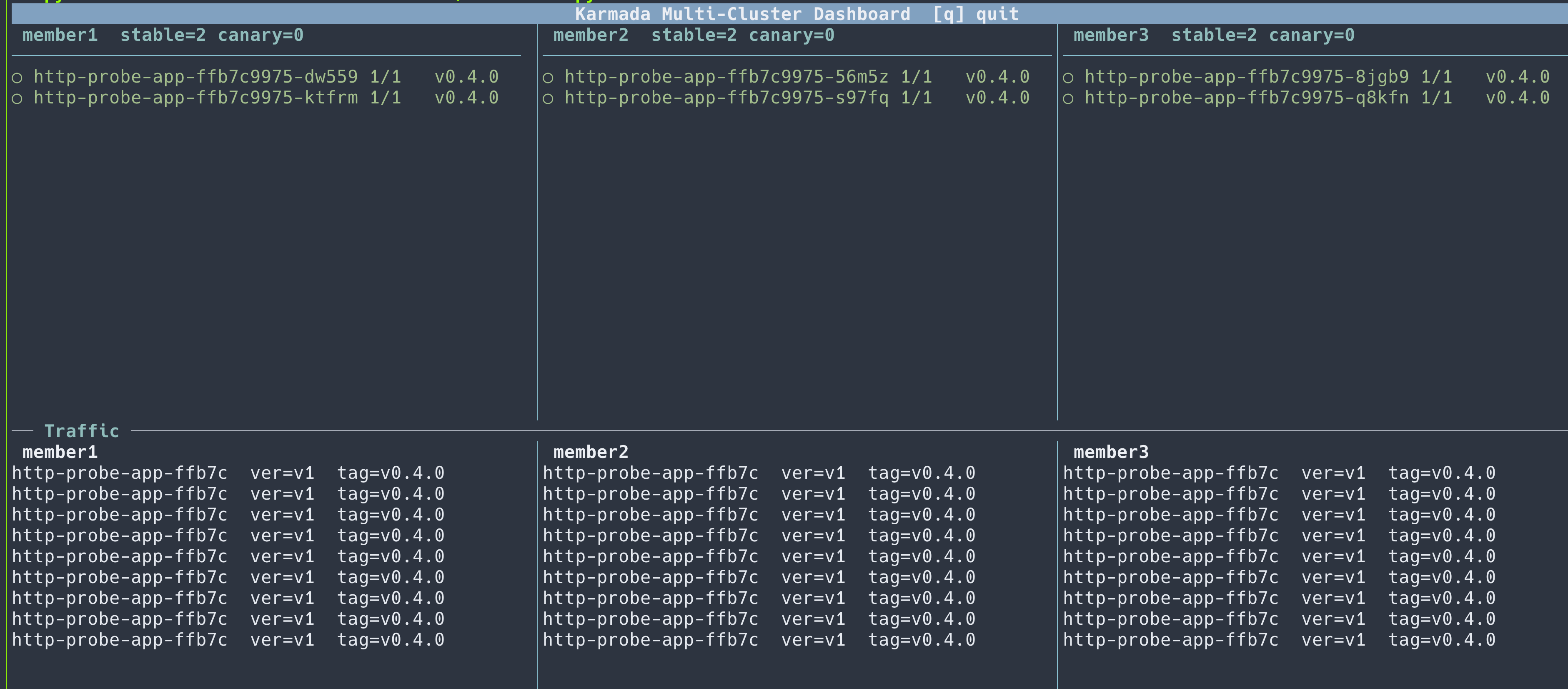
The karmada-multicluster-dashboard provides a live terminal view of replica state and traffic across all three clusters — useful for observing canary and rollout progression in real time.
git clone https://github.com/unixsurfer/karmada-multicluster-dashboard
python3 karmada-multicluster-dashboard/dashboard.py \
  --no-rollout \
  --cluster member1:member1:8090:10254 \
  --cluster member2:member2:8091:10255 \
  --cluster member3:member3:8092:10256 \
  --namespace default \
  --host-header http-probe.local \
  --members-kubeconfig ~/.kube/members.config
The dashboard shows:
- Replica panel (top half, one column per cluster): all running pods with their version
label. Pods running the minority version are highlighted in yellow with
●; pods on the majority (stable) version are shown in green with○. The column header showsstable=N canary=Nper cluster. - Traffic panel (bottom half, one column per cluster): live
/inforesponses streamed from each cluster's ingress. Responses from the minority version are highlighted in yellow — immediately visible when a canary is running or a rolling update is in progress. - Bottom bar: timestamp and a
● canary ○ stablelegend that appears only when pods on two different versions are present simultaneously.
Press q or Esc to exit.
Cleanup
Run the following after completing all strategies to remove all resources:
pkill -f "port-forward svc/ingress-nginx-controller" || true
kubectl delete -f base/http-probe-app-v2.yaml --ignore-not-found
kubectl delete -f wave/http-probe-app-wave-base-v2.yaml --ignore-not-found
kubectl delete -f wave/http-probe-app-wave-deployment.yaml --ignore-not-found
kubectl delete -f base/ingress-nginx-propagation.yaml --ignore-not-found
kubectl delete -f base/ingress-nginx-cluster-propagation.yaml --ignore-not-found
kubectl delete -f base/ingress-nginx-deploy.yaml --ignore-not-found